Meta Quest
Play Piano on Meta Quest
Practice piano in immersive WebXR on your Meta Quest headset — straight from the browser, no app required.
Open AppNot available on the Meta Quest Store
GrandScore is not distributed through the Meta Quest Store. Instead, open it in the Quest browser and add it to your Library as a web shortcut. It only takes a moment — here is how.
How to install
01
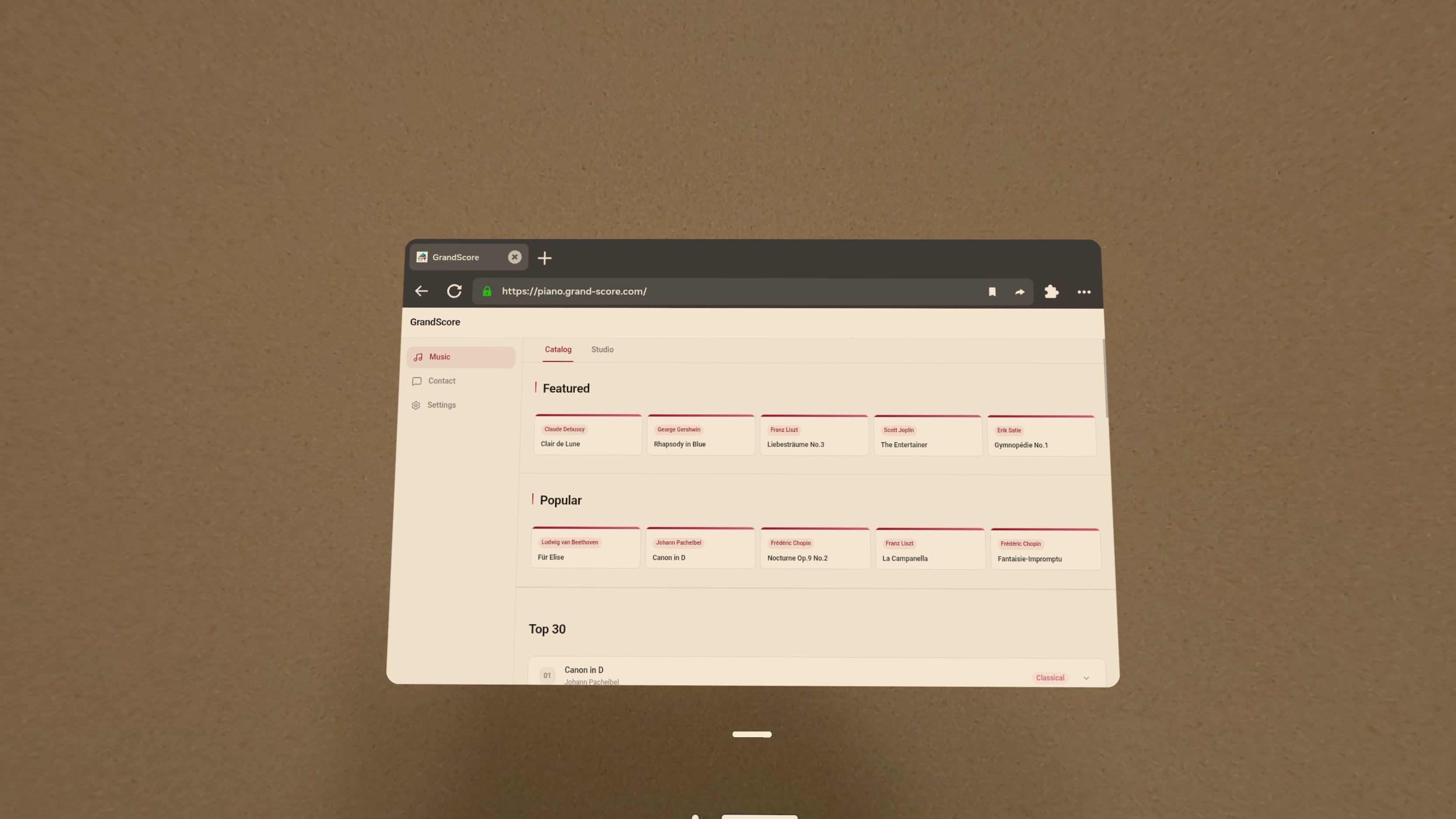
Open the link
On your Meta Quest device, open the link above in the browser.
02
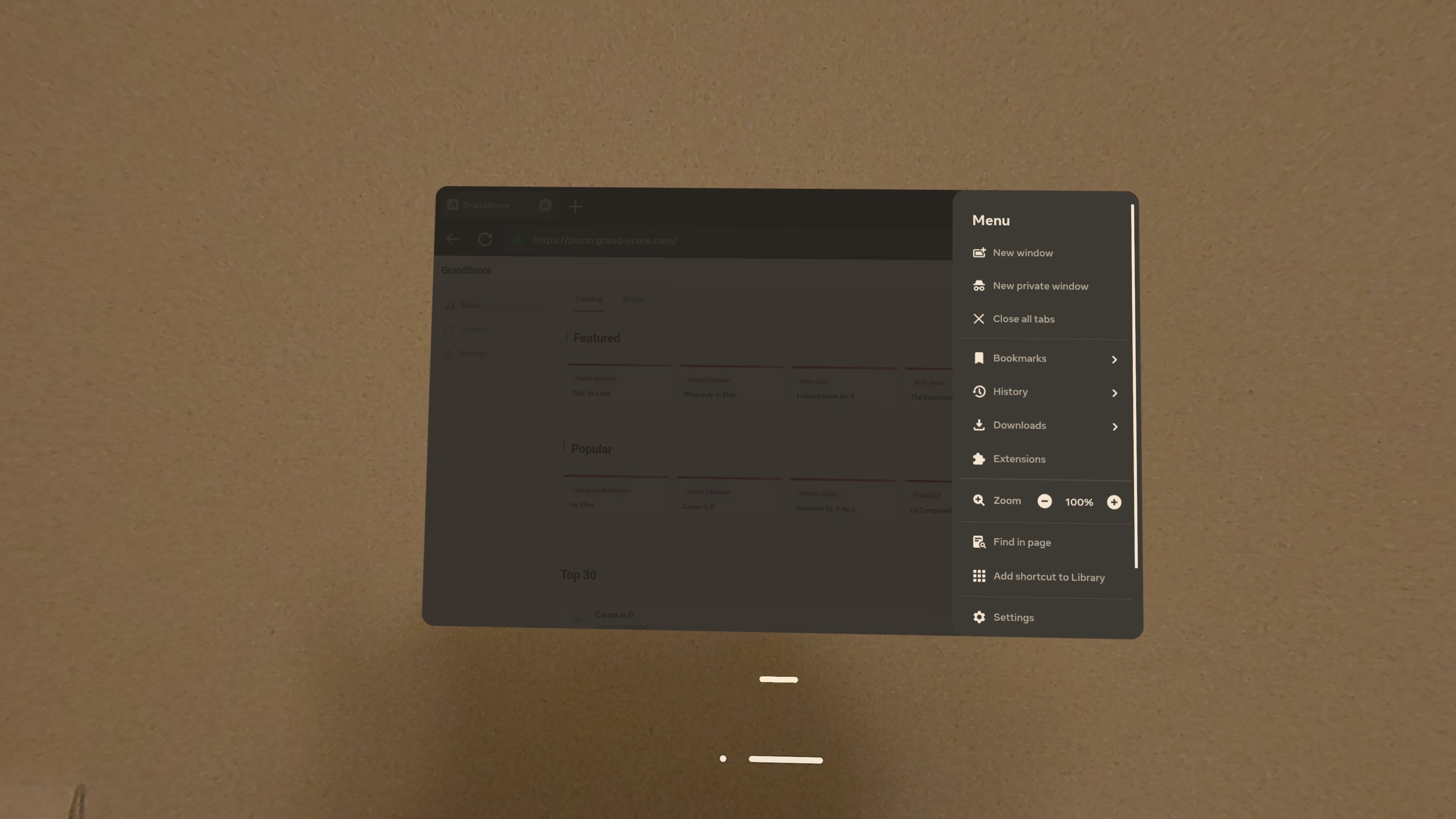
Add shortcut to Library
Press the settings button to open the menu, then tap "Add shortcut to Library".
03
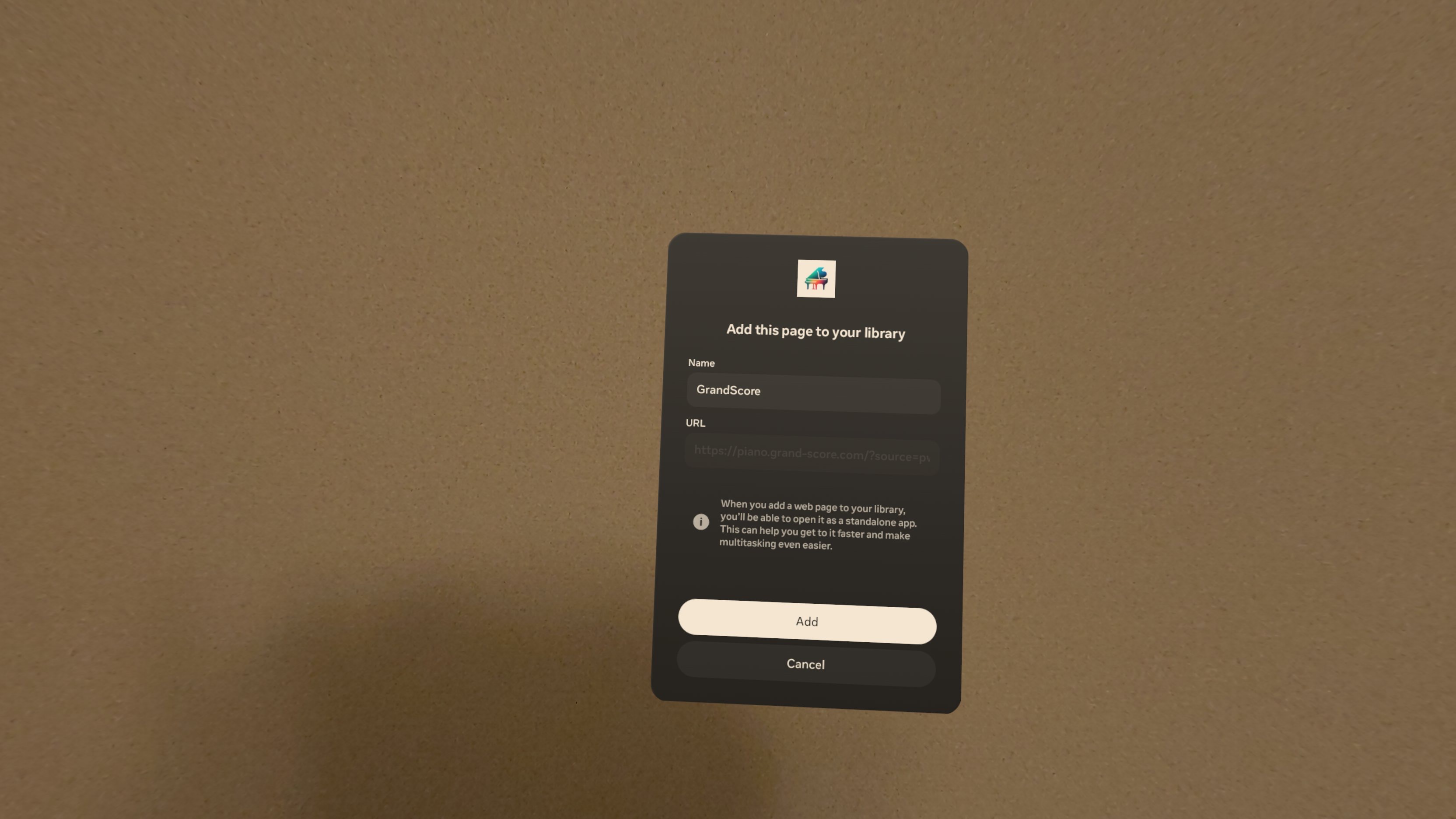
Confirm
A confirmation screen appears like this — tap "Add".
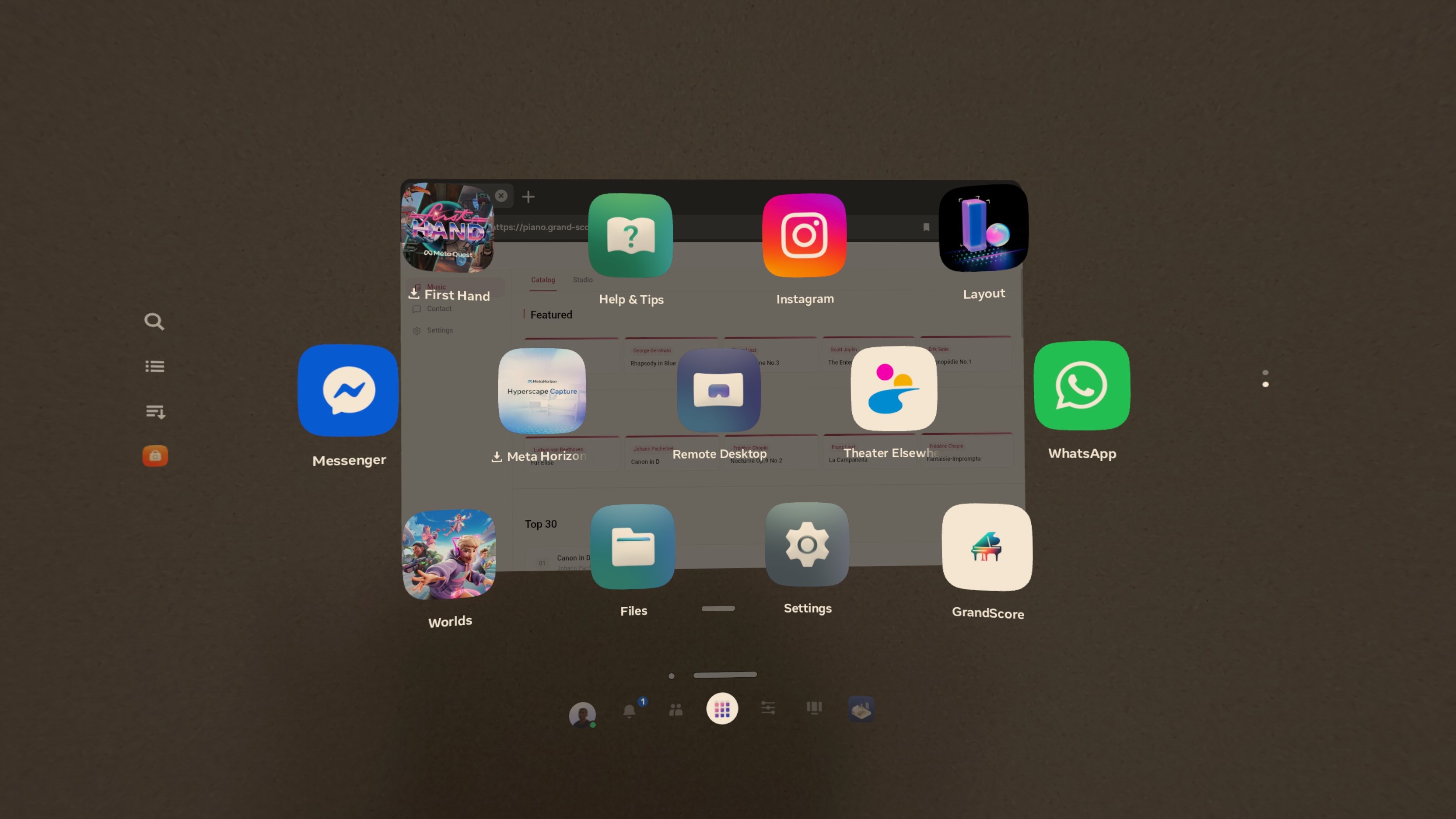
04
Done
Check that the shortcut has been added to your Home.
Play with your real piano
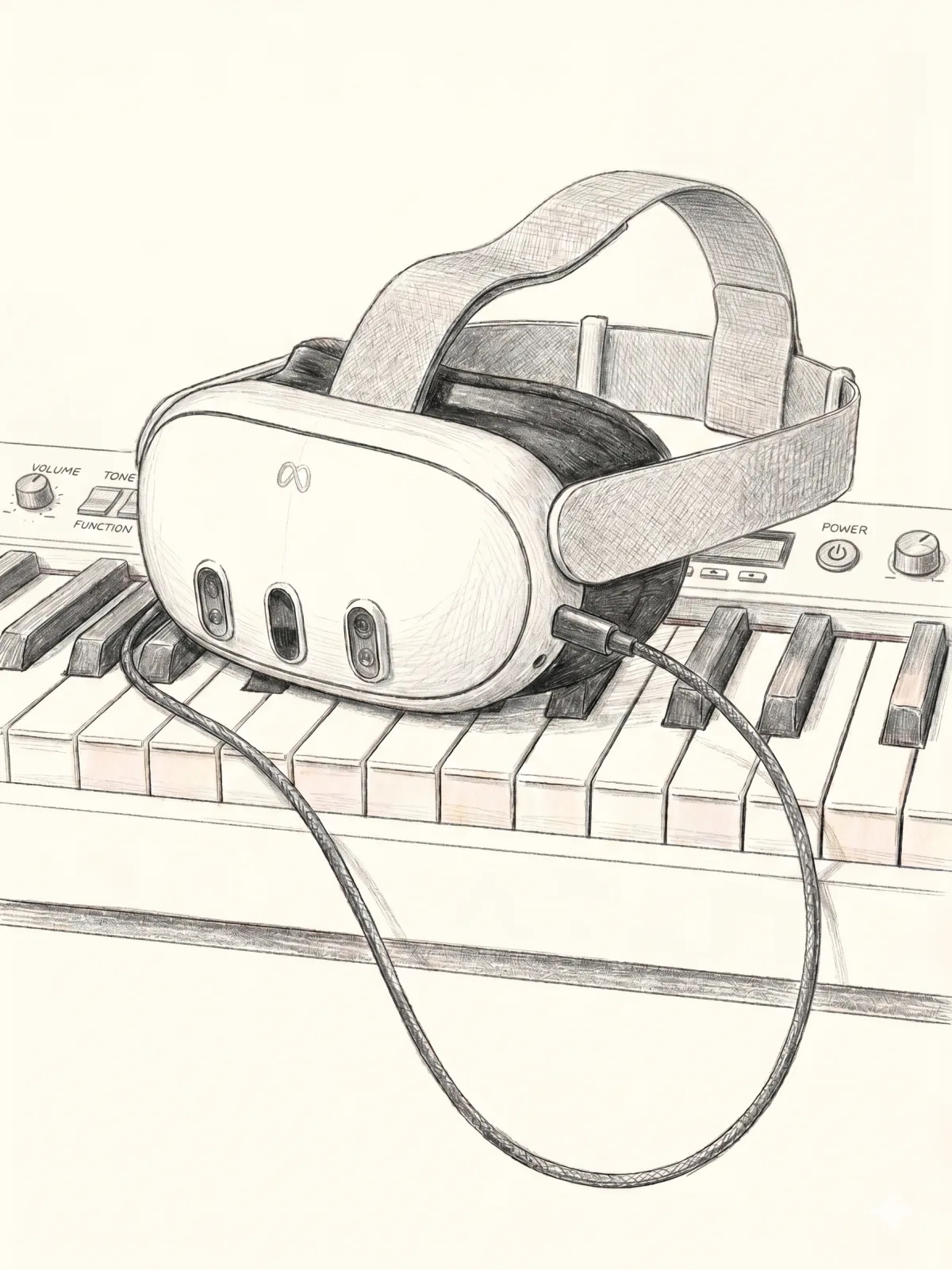
Keep the headset on and connect a MIDI keyboard. The notes you play appear on the score floating in your immersive space.
Frequently asked questions
Can you play piano on Meta Quest?
Yes. GrandScore runs in immersive WebXR right in the Meta Quest browser, so you can practice piano on Quest without installing a native app. Open piano.grand-score.com, put on your headset, and your score surrounds you.
Is there a piano app on the Meta Quest Store?
GrandScore is not on the Meta Quest Store. Instead, open it in the Quest browser and add it to your Library as a web shortcut in a few taps — you get the full piano experience with nothing to download.
Do I need a real piano or keyboard to use it on Quest?
No. You can follow the on-screen visual guidance with no instrument at all, or place your headset above a real piano or MIDI keyboard and play along.